Crafter — Usage
Once installed, Crafter lints your files directly in your IDE — validating both the structure (against an embedded JSON Schema) and the rules (via the embedded Polychro engine). The supported formats are:
- Ikanos capability configuration
- OpenAPI definitions — 3.1, 3.0, and Swagger 2.0
How diagnostics are displayed
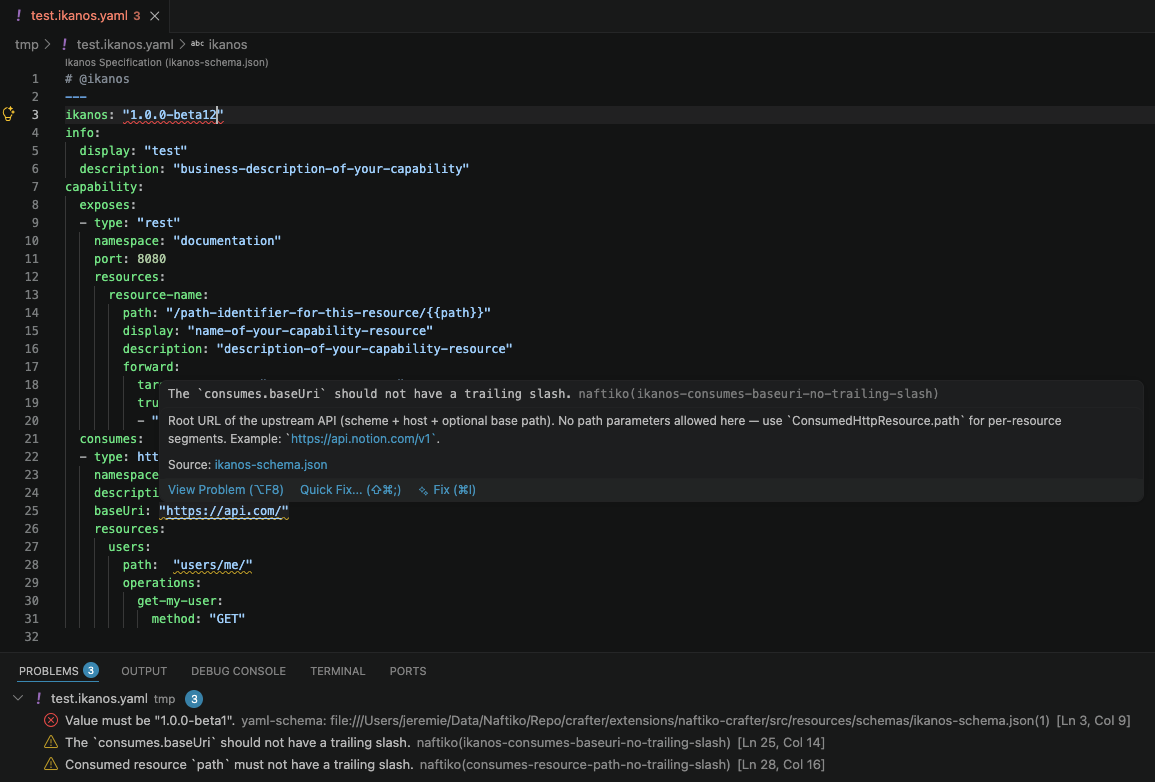
Linting messages surface in two complementary ways:
- Inline — offending elements are underlined in the editor; hover over them to see the full details in a pop-up.
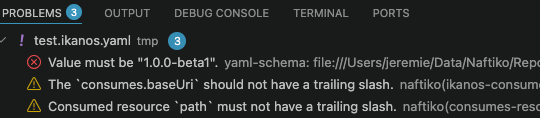
- Problems panel — the
PROBLEMSpanel at the bottom lists all messages from every open supported file.
Which files get validated
Manual linting
Run the Naftiko: Validate File command to lint the file currently open
in your editor. Open the palette (Ctrl+Shift+P / Cmd+Shift+P) and type
"Naftiko: Validate File".
Automatic live linting
Crafter also validates matching files automatically, on the fly, as you type. A file is picked up if it matches either of these conditions:
- File extension — by default, any file ending in
.ikanos.yamlor.ikanos.yml. - Modeline — by default, any YAML file containing the following comment within its first 5 lines:
Both the extensions and modelines are configurable — see Extension settings below.
Tip
To benefit from automatic linting, make sure your file matches one of the two conditions above, or adjust the extension settings accordingly.
File structure validation
Your file must follow a valid structure defined by a schema (Ikanos or OpenAPI) embedded in Crafter. The full schema references are:
File rules validation
In addition to structure, various technical and business rules are validated by Polychro, which is embedded in the extension.
You can add your own custom rules through the extension settings, or more
simply with the Naftiko: Browse for Custom Ruleset File... command. Open
the palette (Ctrl+Shift+P / Cmd+Shift+P), run the command, and select
your ruleset file. When a custom ruleset is set, both the built-in rules
and your custom rules are applied.
Commands
All commands are available from the palette (Ctrl+Shift+P /
Cmd+Shift+P) under the Naftiko category:
| Command | What it does |
|---|---|
| Naftiko: Validate File | Lints the file currently open in the editor |
| Naftiko: Browse for Custom Ruleset File... | Picks a custom Polychro ruleset to apply on top of the built-in rules |
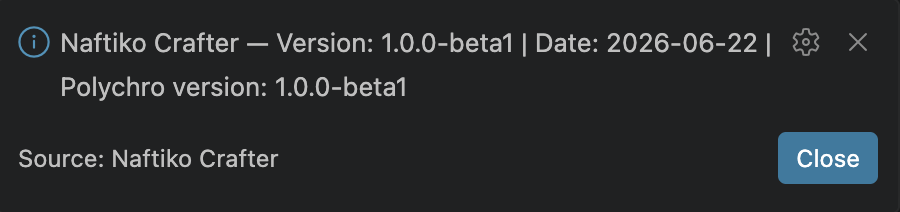
| Naftiko: Show Naftiko Crafter Infos | Displays the Crafter version and date, plus the embedded Polychro version |
Extension settings
Access the settings via Code > Preferences > Settings, then search for
"naftiko".
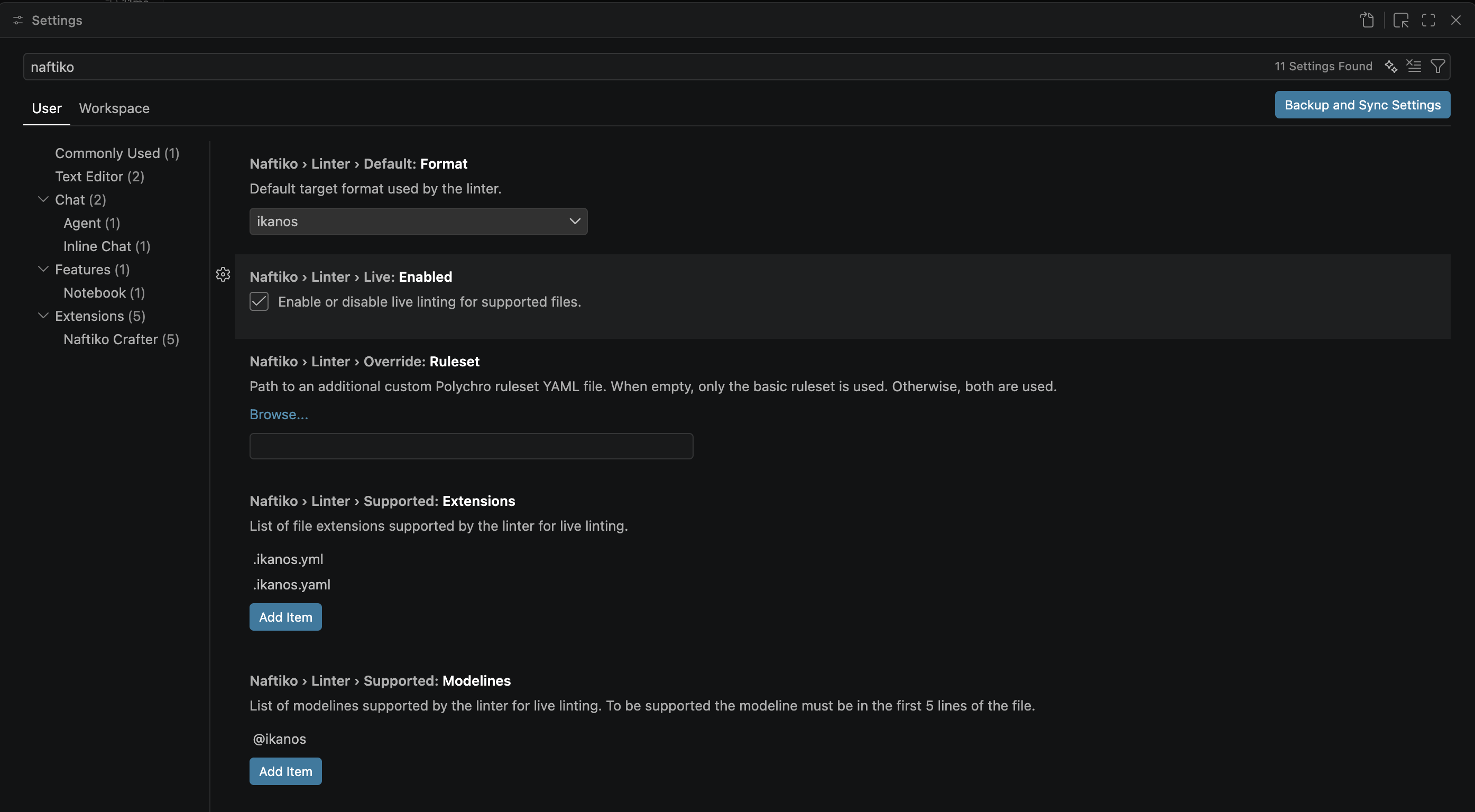
| Setting | Default | Description |
|---|---|---|
| Default format | ikanos |
Default target format used by the linter (ikanos or oas). |
| Live linting enabled | ✅ on | Enable or disable live linting for supported files. |
| Supported extensions | .ikanos.yml, .ikanos.yaml |
File extensions the linter picks up for live linting. |
| Supported modelines | @ikanos |
Modelines the linter picks up for live linting (must appear in the first 5 lines of the file). |
| Override ruleset path | (empty) | Path to an additional custom Polychro ruleset YAML file. When set, both the built-in rules and your custom rules are applied. You can also browse for it via "Naftiko: Browse for Custom Ruleset File...". |
Extension infos
To check the Crafter version, its release date, and the embedded Polychro
version, open the palette (Ctrl+Shift+P / Cmd+Shift+P) and run
"Naftiko: Show Naftiko Crafter Infos".